
 Syspirit
Today, I’m going to talk about how I do my daily tech watch and the different tools I use to make the task smoother and more enjoyable.
What is tech watch?
Tech watch is simply staying informed about news, trends, and developments in your field. Concretely: following new version releases, critical security vulnerabilities, emerging best practices, trending tools…
For a sysadmin like me, it can be:
- A critical CVE on a service I use
- A new vCenter or ESXi release
- An article about a new tool
- Tutorials, IT tips of all kinds
In short, everything that helps stay up-to-date or discover new things.
Why do tech watch?
Because IT evolves fast. Very fast. What worked 6 months ago can be obsolete today, and a zero-day vulnerability can appear on a critical service we use in production.
But for the task to remain enjoyable and effective, you need to organize. Otherwise, you spend 2 hours a day scrolling through 15 different sites… and that’s not sustainable.
My solution: RSS feeds
Do you know RSS feeds? It’s a bit old school, but honestly ultra-practical for centralizing information. The principle: instead of visiting 20 sites every day, you subscribe to their RSS feeds, and all the news arrives in one place. A bit like an email inbox, but for articles.
Advantages:
- Everything centralized in a single interface
- Sorting by category / theme
- No distractions (no ads, no questionable algorithmic suggestions)
- Fast: one glance and I see directly what interests me
In short, it’s exactly what I needed for effective tech watch without spending hours on it.
The tools & their setup
There are several tools to centralize and read RSS feeds: SaaS apps as well as self-hosted, free or paid… But I wanted something lightweight, efficient, aesthetically pleasing and free. I usually browse the selfh.st site which allows filtering tools by tags. So, off to the RSS section, and after some comparisons, my choice fell on FreshRSS.
FreshRSS
What I liked about this feed aggregator is its interface that I find clean and clear as well as its choice of themes (even if there’s only one that I find really nice). The project is regularly updated and that’s nice!
Installation
For the installation, I used Docker. Here’s the content of my docker-compose.yml:
services:
  freshrss:
    image: freshrss/freshrss
    container_name: freshrss
    ports:
      - "6769:80"
    volumes:
      - /data/docker/freshrss/data:/var/www/FreshRSS/data
      - /data/docker/freshrss/extensions:/var/www/FreshRSS/extensions
restart: unless-stopped- Port 6769: I chose a custom port rather than 8080, so I can run multiple web services on the same machine without conflict
- Volumes: data and extensions are persisted locally in
/data/docker/freshrss/, which allows saving the config even if I recreate the container - restart: unless-stopped: the container restarts automatically in case of crash or server reboot
A quick docker-compose up -d, and hop, FreshRSS is accessible locally at http://localhost:6769!
Exposure
I wanted to be able to check my feeds from anywhere, so I decided to expose FreshRSS on the Internet securely. For this, I use Nginx as a reverse proxy with a free SSL certificate via Let’s Encrypt.
SSL certificate generation
First, I generated an SSL certificate with Certbot:
sudo certbot --nginx -d rss.karlcerta.frThis command asks Certbot to generate a free SSL certificate via Let’s Encrypt for the domain rss.karlcerta.fr. The --nginx flag allows Certbot to automatically detect and modify the Nginx configuration: it adds HTTPS, configures certificates, and sets up HTTP to HTTPS redirection.
As a bonus, Certbot also configures automatic certificate renewal every 90 days. In short, one command and HTTPS is configured from A to Z!
Nginx configuration
And here’s the Nginx site config that acts as a reverse proxy:
server {
    server_name rss.karlcerta.fr;

    location / {
        proxy_pass http://localhost:6769;
        proxy_set_header Host $host;
        proxy_set_header X-Real-IP $remote_addr;
        proxy_set_header X-Forwarded-For $proxy_add_x_forwarded_for;
        proxy_set_header X-Forwarded-Proto $scheme;
    }

    listen 443 ssl; # managed by Certbot
    listen [::]:443 ssl;
    ssl_certificate /etc/letsencrypt/live/rss.karlcerta.fr/fullchain.pem; # managed by Certbot
    ssl_certificate_key /etc/letsencrypt/live/rss.karlcerta.fr/privkey.pem; # managed by Certbot
    include /etc/letsencrypt/options-ssl-nginx.conf; # managed by Certbot
    ssl_dhparam /etc/letsencrypt/ssl-dhparams.pem; # managed by Certbot
}

server {
    if ($host = rss.karlcerta.fr) {
        return 301 https://$host$request_uri;
    } # managed by Certbot

    listen 80;
    listen [::]:80;
    server_name rss.karlcerta.fr;
    return 404; # managed by Certbot
}
Summary:
- The first block listens on port 443 (HTTPS) and redirects requests to the Docker container on port 6769
- The
proxy_set_headerdirectives transmit client info (IP, protocol) to FreshRSS so that logs and redirects work correctly - The second block forces HTTP to HTTPS redirection for all unsecured connections
- Certbot automatically added SSL certificates and security best practices (
ssl_dhparam, etc.)
And there you go! My FreshRSS instance is now publicly and securely accessible at rss.karlcerta.fr
Configuration
Once the installation is complete and the first user is created, we can now add our first feeds by clicking on the small +:

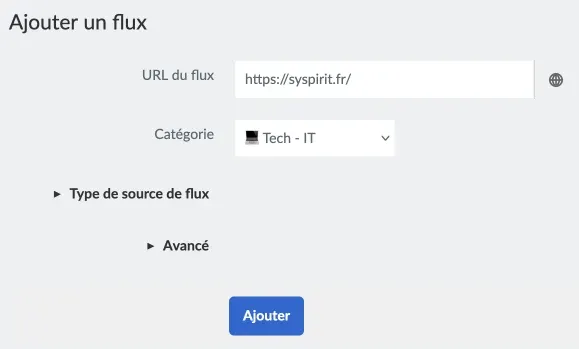
Then just enter the site URL or, even better, the direct link to the RSS/XML feed (e.g.: https://syspirit.fr/rss.xml):
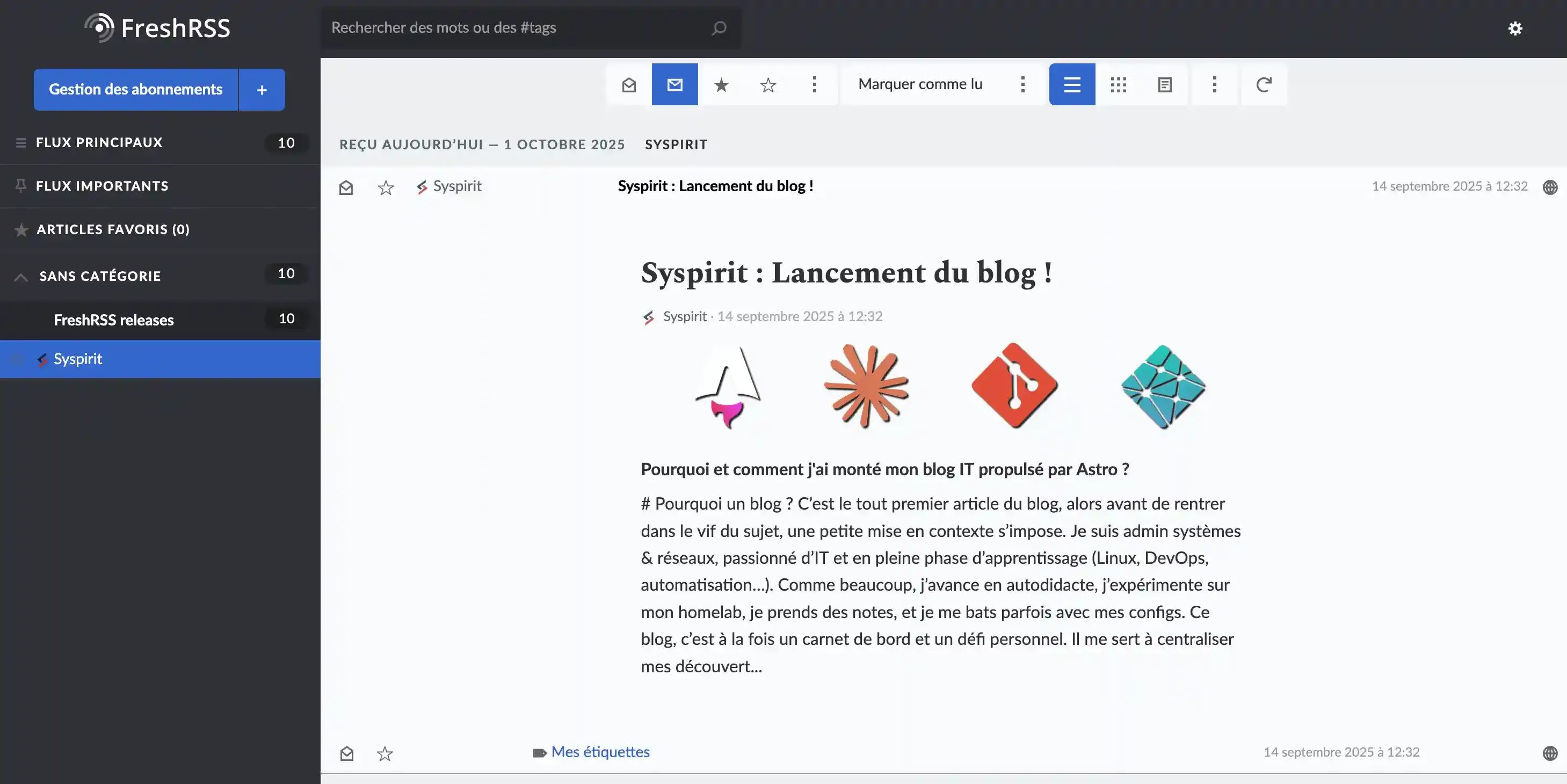
Once added, we can now browse the feed content directly from the interface:
FreshRSS also allows:
- Sorting feeds by categories (Linux, Security, DevOps…)
- Automatically archiving old articles
- Purging feeds to keep a clean and clear view
- Adding users so they can manage their own feeds
For my part, I blocked public registrations and simply left my own feeds accessible for public reading.
And on mobile? Reeder.
Well, a web page on mobile is functional… but not optimal. So I looked for a dedicated app to read my feeds comfortably from my phone.
I opted for Reeder, a paid app (a few euros) but really well made. It connects to FreshRSS via API and syncs everything automatically. (Only available on iOS…)
API configuration in FreshRSS
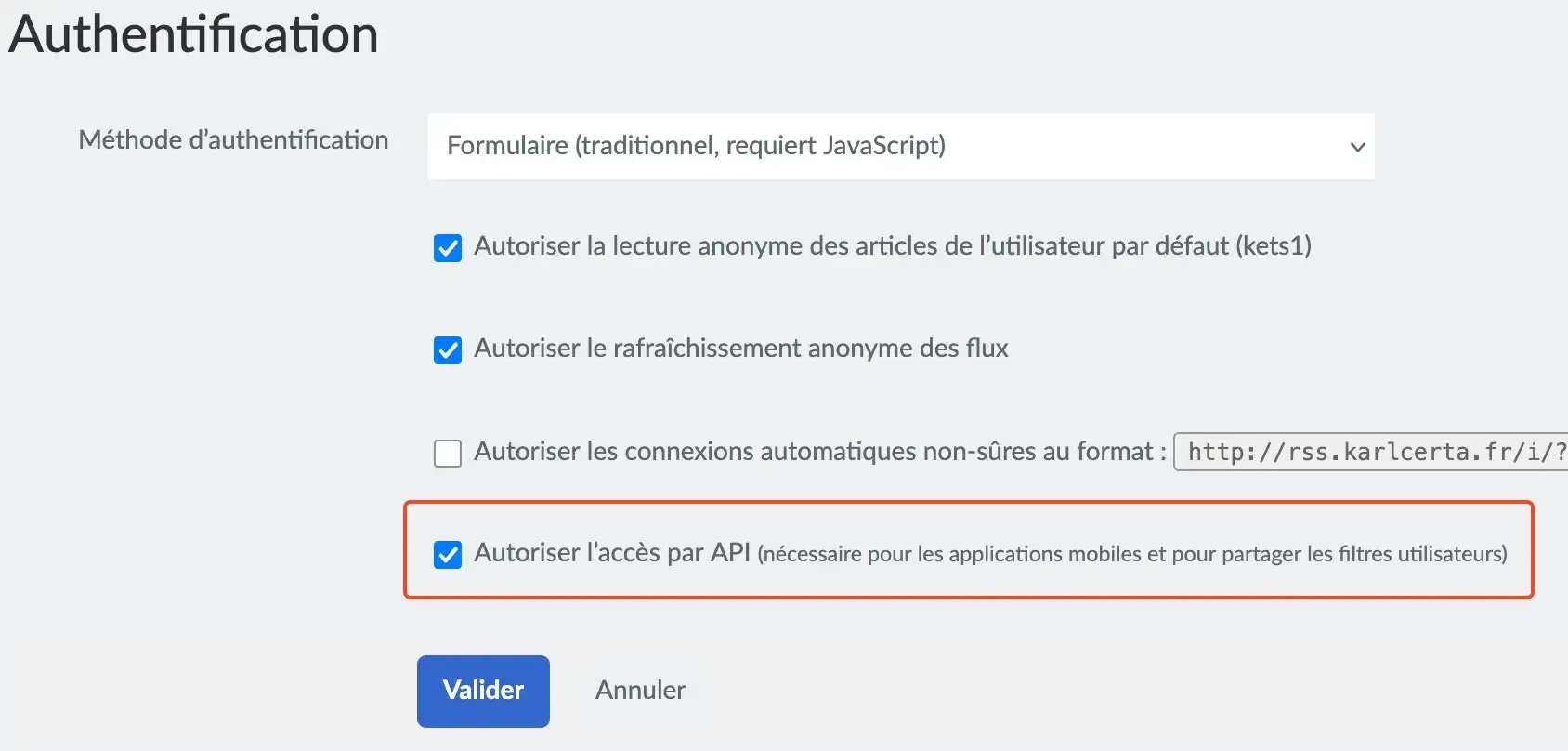
In the Authentication menu, check the box to enable API access:
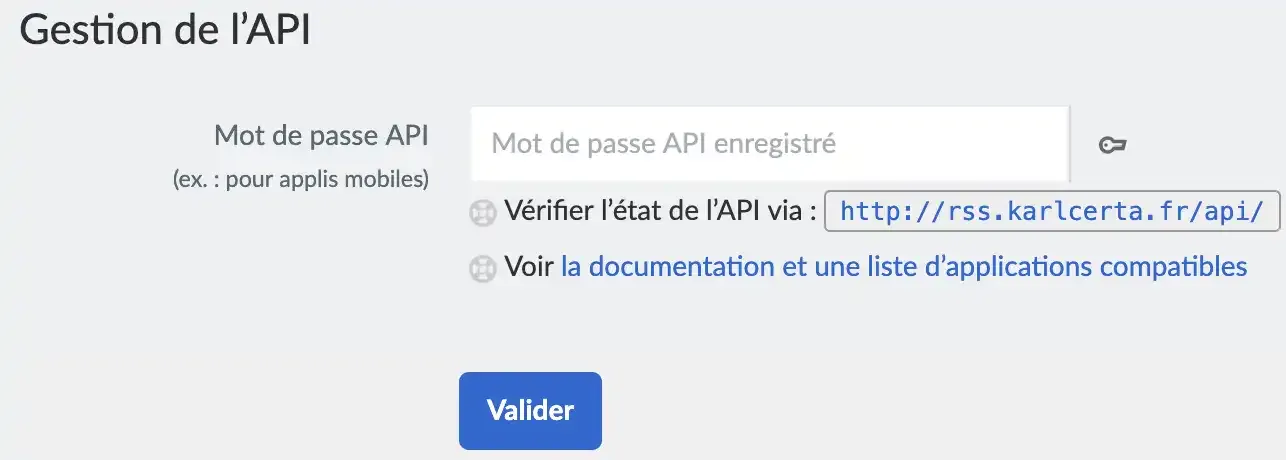
Then, in the Profile menu, enter an API password and Validate:
Configuration in Reeder
In the Reeder app, click on the small + at the top right and select FreshRSS. Enter the following information:
- Server: rss.karlcerta.fr (your URL)
- Username: your FreshRSS login
- Password: the previously generated API password
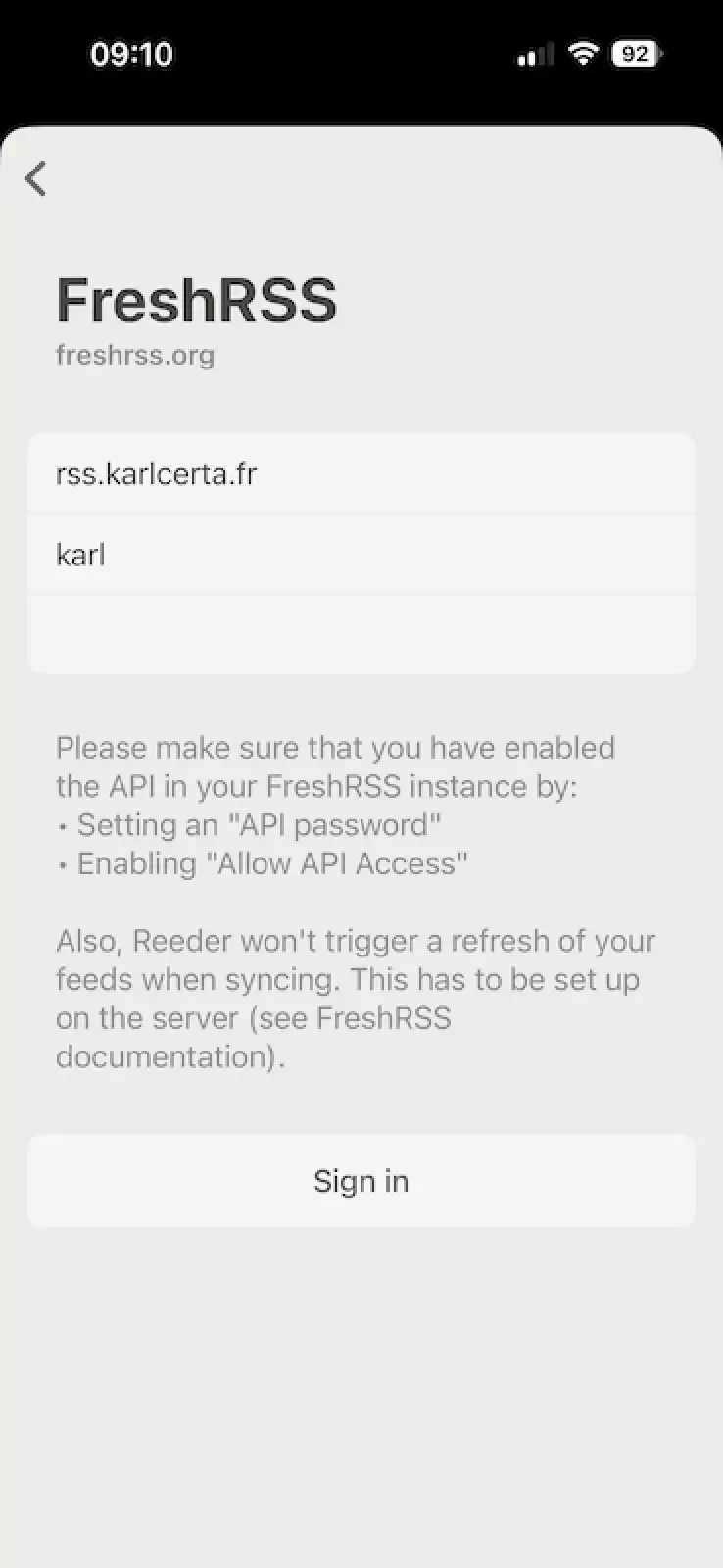
And there you go! We find all our feeds directly synced from our FreshRSS server!
On Android: FeedMe
For Android users, I haven’t personally tested, but the FeedMe app seems to work the same way with the FreshRSS API. The configuration should be similar: enabling the API in FreshRSS, then connecting from the app with your credentials.
Conclusion
Doing tech watch is essential in IT, but it shouldn’t be a chore. With a well-thought-out setup (FreshRSS + mobile app), I spend less than 10 minutes a day staying up-to-date, and it’s become a real pleasure.
If you’re looking for a simple, efficient solution that’s entirely under your control, I really recommend this approach. And if you have other tips or tools for managing your tech watch, feel free to share!
You can also take a look at my own public instance here: https://rss.karlcerta.fr